
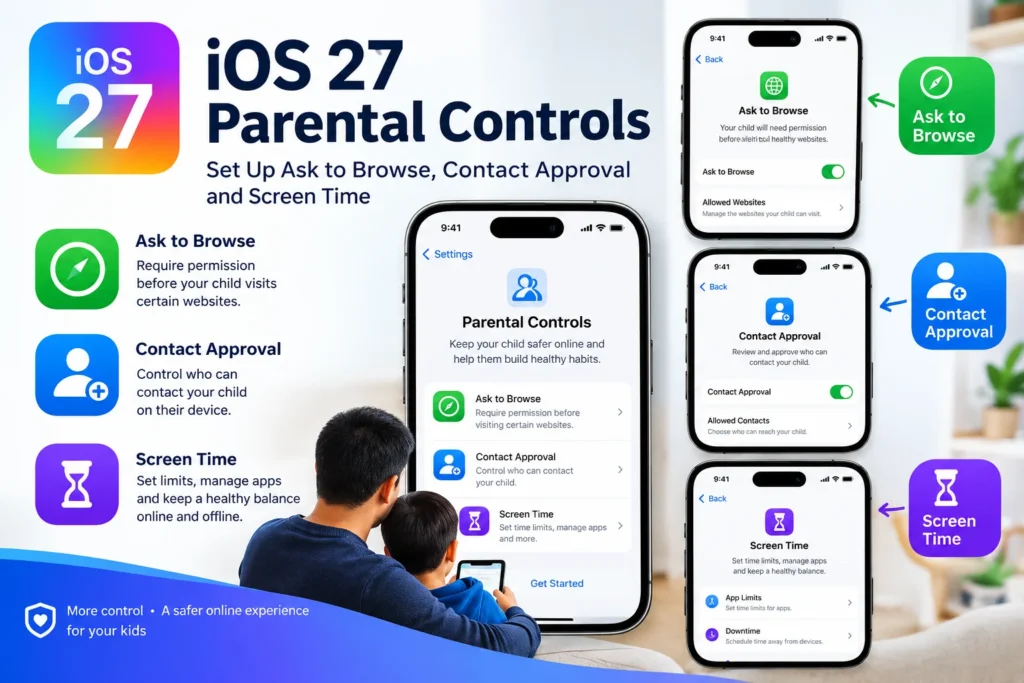
Apple’s iOS 27 parental controls are available, but families need to update their Screen Time setup to use the redesigned tools. Parents can approve websites before a child opens them, review new contacts, assign daily time budgets by app category, and decide which apps are available during school or bedtime. The most important setup catch: Apple asks families to update their eligible devices to version 27 and migrate their parental-control settings; older devices have a separate legacy path.
Information checked on 17 October 2026 against Apple’s September 2026 support documentation. Menus and defaults can differ by country, age and software version. This is a documentation-based guide, not a hands-on test of every family configuration.
What parents need to know first
- Start with a separate Child Account. Apple recommends that each child use their own Apple Account within Family Sharing rather than sharing an adult’s sign-in.
- Ask to Browse is not the same as Ask to Buy. One controls new website access; the other covers eligible app downloads and purchases.
- Ask to Browse is on by default for Child Accounts under 13 and Limit Adult Websites for under-18s, subject to local age rules. Check the actual settings instead of assuming defaults.
- Time Allowances and Schedules work together. One limits how much time is available; the other determines when particular categories can be used.
- Not all devices or apps behave identically. Apple explicitly limits some features to supported browsers and says older Apple devices can continue using earlier Screen Time controls.
Set up iOS 27 parental controls in the right order
1. Check Family Sharing, child accounts and device versions
On the parent’s iPhone, open Settings → Family. Confirm the child appears in the family group with their own Child Account. The family organizer or a parent/guardian should be included in the child’s contacts so approval requests can reach them. Apple’s September 14 setup instructions make these prerequisites explicit.
Next open Settings → Family → View Family Devices. Review which eligible devices still need version 27, then update them through Settings → General → Software Update. Afterward, return to Family and use Get Started to transfer or set up the redesigned controls. This is a family-wide preparation step, not simply an update on the child’s phone.
Have an old iPad or Mac that cannot update? In View Family Devices, Apple provides a Legacy Devices list. Those devices can continue with older Screen Time and Family Sharing settings; Apple does not say that an unupgradable legacy device must be discarded. If a family cannot complete the new setup, Apple also permits continued use of the earlier controls or management directly on the child’s device. Check Apple’s family-device migration guide before removing any account or device.
For the wider release, supported iPhones and software features, see our iOS 27 compatibility and features guide. An iPhone’s eligibility for iOS 27 should not be confused with its eligibility for every Apple Intelligence feature.
2. Turn on Screen Time for the child
On the family organizer’s or guardian’s device, open Settings → Family → [child’s name] → Screen Time and follow the setup prompts. When managing a Child Account through Family Sharing, Apple says the parent or guardian should create the child’s Screen Time passcode on the parent’s device. Keep that passcode private and different from the child’s device passcode. Review any previously configured rules after migrating instead of assuming they carried over exactly as intended.
Ask to Browse: approve websites before a child opens them
Ask to Browse is one of iOS 27’s clearest practical changes. With it enabled, a child trying to visit a new website in Safari or another supported browser app must request permission. Parents can approve or decline the request, and can pre-approve school or family sites. An approved site stays accessible until a parent blocks it later.
- Open Settings → Family → [child] → Apps & Websites → Restrictions.
- Under Websites, choose Filtering.
- Select Approved Websites Only to require approval for new destinations. Limit Adult Websites is a less restrictive alternative.
- When a request arrives, review the actual website and approve or decline it. You can also enter the Screen Time passcode on the child’s device to respond there.
- To reverse an approval later, go to Apps & Websites, choose the site and tap Block Website.
Apple says a request that goes unanswered for 24 hours must be submitted again. Browser support matters: Apple describes the feature as working in Safari and supported browser apps, not every possible browser on every platform. If a child uses multiple browsers, confirm each one is covered and separately restrict any unsupported app. For older teens, a parent may prefer adult-site filtering plus conversations about safe browsing rather than approval of every new site.
Allowed Contacts: control who can reach your child
Under Settings → Family → [child] → Allowed Contacts, parents can select Contacts Only, Contacts & Groups with at Least One Contact, or Everyone during permitted Screen Time. Apple documents these controls for Messages, FaceTime and Phone. Do not assume they automatically moderate messages inside every third-party social or chat app.
To require approval before the child adds new contacts, turn on Manage Contacts and leave Allow Contact Editing off. A message from a person not yet approved can be withheld until the organizer or another guardian authorizes that contact. Review the list periodically: the goal is to keep important family and school communication available without leaving new contact requests unrestricted.
Parents should also review the Always Allowed settings and emergency communication needs. A contact rule designed for ordinary messaging should not unintentionally make a child’s routine pickup or urgent family contact harder.
Time Allowances vs Screen Time Schedules: the difference
Time Allowances answer “how long?” You can set a daily overall allowance and refine time for categories such as Entertainment, Games and Social Media. Apple’s version 27 guidance explains that a category stops being available when it reaches either its category allowance or the daily total, depending on the configured limits. The parent’s path is Settings → Family → [child] → Time Allowances → Add.
Schedules answer “when?” In Settings → Family → [child] → Screen Time Schedule, turn on the schedule, add days and define periods such as before school, school, homework, dinner and bedtime. Different weekday and weekend schedules are possible. The interface also allows a guardian to pause device use, temporarily permit unlimited use or change that day’s schedule.
For example, a family could make educational and communication apps available during a school period, give games a shorter allowance after homework and keep important contacts always allowed. That is a suggested configuration approach, not an Apple-recommended universal number of minutes. Adjust for age, school demands, accessibility needs and the child’s actual routine rather than relying on a one-size-fits-all timer.
Communication Safety, content ratings and privacy controls
Apple’s Communication Safety can intervene when supported photos or videos appear to contain nudity, gore or violence, including supported messages and FaceTime interactions. Apple says detection runs on-device and it does not get access to those photos or videos. To review the setting, go to Family → [child] → Communication Safety. This feature is a safeguard, not a guarantee that every harmful image or service will be detected.
Also inspect Content & Privacy Restrictions for age ratings, Siri functions, account changes and other permissions. App Store purchase approval is configured separately under Apps & Websites → Restrictions → Ask to Buy. For a younger child, confirm that both app installation and website browsing have the intended controls; enabling one does not automatically replace the other.
At-a-glance setup comparison
The table below separates six controls that can sound similar but solve different problems. These are Apple-documented settings for the updated family experience, not independently benchmarked protections.
| Control | What it changes | Where to find it |
|---|---|---|
| Ask to Browse | Approve each new website in Safari and supported browsers; previously approved sites stay accessible. | Settings → Family → child → Apps & Websites → Restrictions → Websites → Filtering. |
| Ask to Buy | Review eligible App Store downloads and purchases before they proceed. | Family → child → Apps & Websites → Restrictions → Ask to Buy. |
| Allowed Contacts | Decide who can call, message or FaceTime; require approval for new contacts. | Family → child → Allowed Contacts; leave Allow Contact Editing off to require requests. |
| Time Allowances | Set a daily total and adjust limits for games, social media and entertainment. | Family → child → Time Allowances. |
| Screen Time Schedule | Choose which apps are available before school, during school and later; vary by day. | Family → child → Screen Time Schedule. |
| Communication Safety | Warn or intervene around detected nudity, gore or violence in supported communications. | Family → child → Communication Safety. |
Five common setup problems and sensible checks
The new parental-control screen does not appear
Check Family → View Family Devices for eligible devices still awaiting version 27 and look for the migration or Get Started prompt. Older legacy devices can remain on their earlier controls. If the family cannot migrate, Apple says the previous Screen Time system remains an option; avoid deleting accounts as a first troubleshooting step.
My child can open a website without asking
Confirm that Approved Websites Only is selected, that the site was not previously approved and that the browser is supported. A site already on the allowed list will not need a fresh request. Check the correct child account and software version before treating it as a software failure.
Requests are not arriving on the parent’s phone
Verify the family organizer or guardian is correctly assigned, appears in the child’s contacts, and that both devices have a working connection. Revisit Family Sharing and the request settings. Apple’s instructions require that contact relationship so requests can be routed appropriately.
A time limit conflicts with a school or bedtime schedule
Review both the category allowance and the schedule window; they are separate controls. Check Always Allowed for essential apps and contacts. Avoid repeatedly adding overlapping rules when the intended outcome can be expressed by one category allowance plus one schedule.
Can this manage a child’s Android phone too?
No. Apple’s Family Sharing and Screen Time controls are designed for supported Apple devices and services. A child’s Android handset, game console or third-party service may require its own parental controls. Families mixing devices should review each platform separately rather than assuming one iPhone setting governs everything.
Practical trade-offs before you enable everything
For younger children, approval-based browsing and contacts can reduce unexpected access, but they also generate requests that adults must actually review. For teenagers, a tightly locked-down configuration may be unnecessarily restrictive; combining content filters, reasonable schedules and agreed-upon rules may be more workable. Defaults and available controls vary by country and age, so the family’s settings page—not a generic checklist—should be the final authority.
Keep a clear distinction between software restrictions and hardware protection. If your household is also evaluating device repair coverage, our AppleCare One Family explainer covers a separate U.S. insurance subscription; it does not substitute for Screen Time or online-safety settings.
Bottom line: First update eligible family devices and migrate the parental-control configuration. Then review websites, contacts, app access and daily schedules in that order. Test one website request and one schedule change with the child present, and revisit the rules as the child’s needs change. Apple’s published controls are useful tools, but they work best alongside ongoing conversations about privacy, scams and online contacts.
Frequently Asked Questions
Is Ask to Browse enabled automatically for every child?
No. Apple says it is on by default for Child Accounts under 13, subject to local age rules; adult-site filtering is on by default for under-18 accounts. Parents should still confirm the actual filtering selection after migrating.
Does Ask to Browse cover Chrome or Firefox on iPhone?
Apple confirms Safari and other supported browser apps, without promising universal coverage for every browser and configuration. Test the browser installed on the child’s device and restrict unsupported alternatives if needed.
Can I approve a website and revoke access later?
Yes. Approved websites are listed under Apps & Websites. Select a site and block it if the permission should end. An unanswered approval request expires after 24 hours, according to Apple.
Do I need to replace an old iPad that cannot run iPadOS 27?
No. Apple provides a Legacy Devices list and says devices that cannot upgrade can continue using older Screen Time and Family Sharing settings. The newest interface has compatibility requirements, but a legacy device is not automatically unusable.
Are Time Allowances the same as Screen Time Schedules?
No. Allowances set daily usage budgets for categories, while schedules define when those categories can be accessed. Families often need both, plus Always Allowed exceptions for essential contacts and apps.
Related Reading
- iOS 27: release date, features and supported iPhones — the wider operating-system compatibility picture.
- AppleCare One Family: coverage, price and launch date — separate hardware coverage for households with several Apple devices.
Sources and References
- Apple Support — Set up parental controls to manage your child’s iPhone or iPad (published 14 September 2026): exact menu paths, contact approvals, website filtering, schedules and regional caveats.
- Apple Support — Use Screen Time to manage your child’s iPhone or iPad (published 22 September 2026): family prerequisites, controls and feature scope.
- Apple Support — Use Ask to Browse to approve websites (published 15 September 2026): approval workflow, 24-hour request window and browser limits.
- Apple Support — Update family devices for version 27 parental controls (version 27 guide, checked 17 October 2026): migration and Legacy Devices.
- Apple iPhone User Guide — Screen Time Schedules and Time Allowances (iOS 27 guide, checked 17 October 2026): category budgets, schedules and Always Allowed.
- MacRumors — iOS 27 adds parental controls (8 June 2026): independent reporting on the original feature announcement; final setup details above follow Apple’s later September instructions.