A practical guide to Samsung Wallet’s payment, travel, ticket, digital-key and security functions, including regional and device limitations.
- Samsung Wallet combines supported payment cards, passes, tickets and digital keys in one Galaxy app.
- Payments, transit systems, partners and digital-key functions vary by country, provider, device and firmware.
- Samsung Knox, encryption and biometric authentication help protect Wallet data.
- Samsung Find can help remotely manage certain Wallet items if a compatible Galaxy device is misplaced.
Samsung Wallet at a glance
Samsung Wallet on Galaxy phones is Samsung’s consolidated app for payment cards, membership cards, transit passes, boarding passes, event tickets and supported digital keys. Samsung’s September 10, 2026 overview presents it as a central place for the small credentials people need throughout a normal day, from paying for coffee to entering an airport or unlocking a compatible car.
The important qualifier is support. Not every Galaxy phone, bank, transit system, airline, vehicle or lock works with every Wallet feature. Availability depends on market, provider, device model, carrier and firmware. The app is therefore most useful when readers separate what Samsung Wallet can do in principle from what their own phone and local partners currently support.
What Samsung Wallet can store
| Item | Typical use | Main limitation |
|---|---|---|
| Payment cards | Tap to pay at supported terminals | Bank, card network and market support |
| Transit cards | Ride supported trains or buses | Local transit integration |
| Boarding passes | Airport check-in and boarding access | Supported airlines and routes |
| Event tickets | Keep tickets ready for venue entry | Issuer compatibility |
| Digital keys | Access compatible cars or smart locks | Supported hardware, software and region |
Samsung Pay’s payment functions are now part of Samsung Wallet, alongside Samsung Pass and newer credential types. That consolidation reduces app switching, but it does not remove the individual eligibility rules attached to each card, pass or key.
Payments and Quick Access
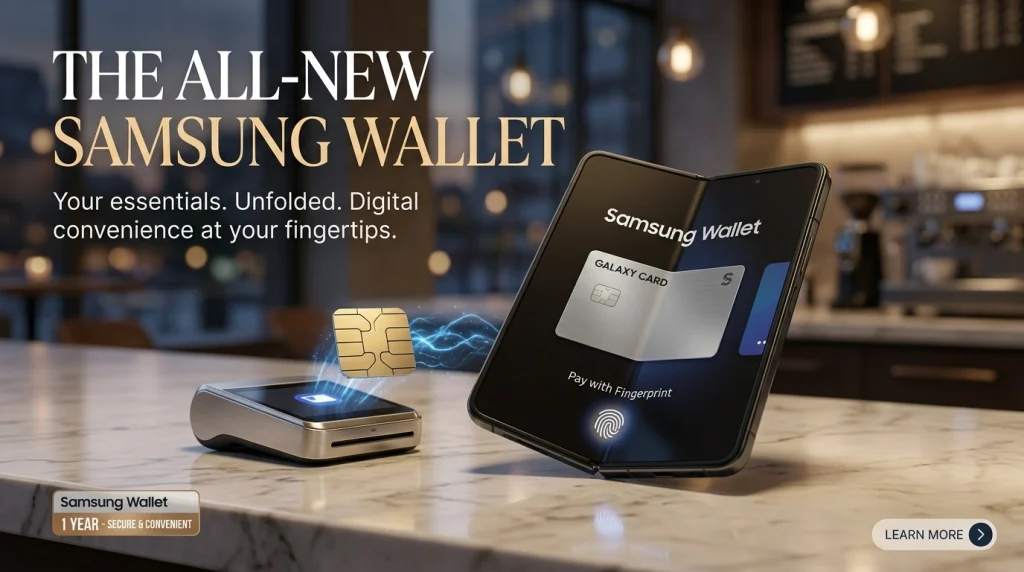
On a supported Galaxy phone, Wallet can hold eligible credit, debit, gift and membership cards. Quick Access is designed to bring selected cards forward without searching through the full app. Samsung’s current overview illustrates payment on the Galaxy Z Flip8, where a user can tap at a compatible terminal and continue without handling a physical card.
Payment support remains regional. Samsung’s September 10 footnote lists 35 markets, including Australia, Brazil, Canada, China, India, Japan, Korea, the U.K., the U.S. and several European and Middle Eastern countries. Inclusion of a country does not guarantee support for every bank or card. Users should verify the issuer inside Wallet before relying on the phone as their only payment method.
Transit cards and boarding passes
Supported transit cards can make commuting easier because the stored card can be presented without carrying a separate physical pass. This depends on the local transport operator and the Wallet implementation available in that country. A payment card working in Wallet does not automatically mean a city’s dedicated transit card is supported.
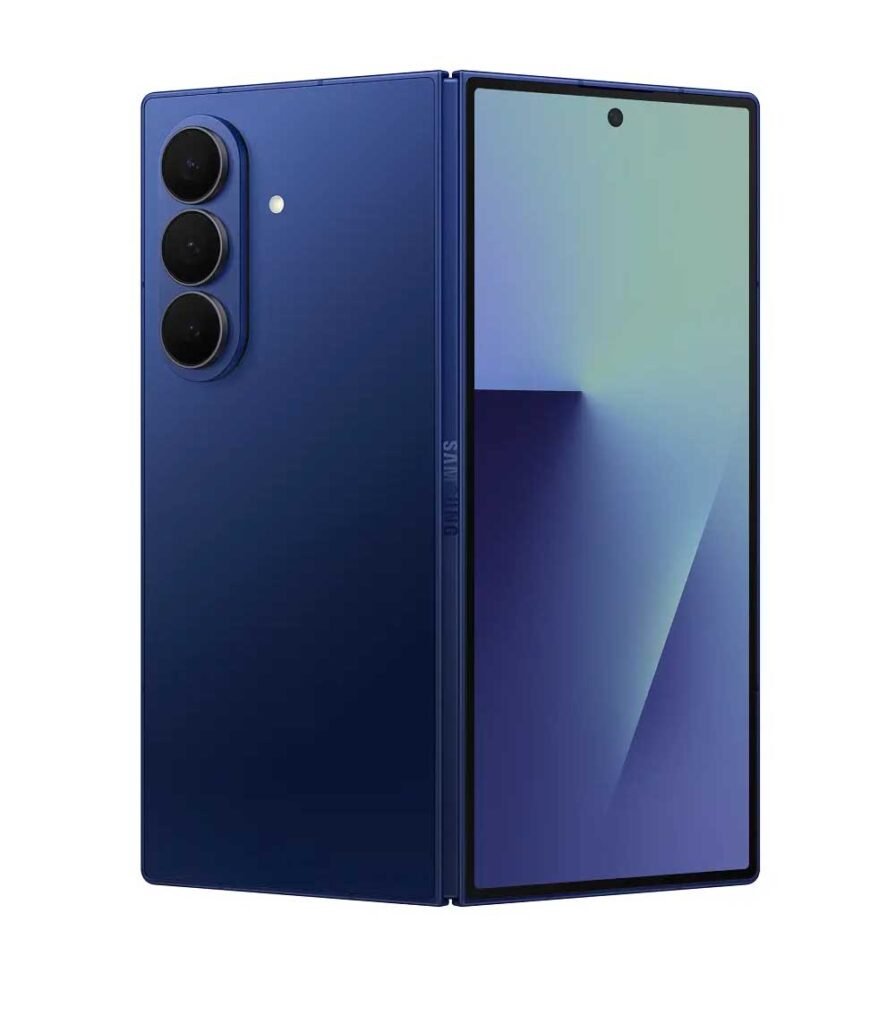
For air travel, supported boarding passes can stay alongside other credentials instead of remaining buried in email. Samsung highlights the larger Galaxy Z Fold8 display for checking travel details. Readers considering that foldable can compare its broader hardware in our Galaxy Z Fold8 specifications.
Tickets and travel organization
Samsung Wallet can store supported event tickets, keeping entry information available from one organized view. That is useful for concerts and other bookings made long before the event, when the original confirmation message may be difficult to find quickly.
Samsung also introduced a Trips feature earlier in 2026 for compatible Wallet versions in Korea, the U.S. and the U.K. It is intended to organize travel information, but version and regional requirements apply. Users should check the installed Wallet version and local feature list rather than assuming a travel feature shown in another country will appear automatically.
Digital car and home keys
Digital Key support extends Wallet beyond cards and tickets. With compatible vehicles, a Galaxy device can lock, unlock or start the car. Supported smart locks can also use a digital home key. Samsung has expanded vehicle compatibility through individual manufacturer partnerships, so the exact car model, vehicle software and phone hardware all matter.
Digital keys can support access sharing with trusted people, with permissions managed from Wallet. That flexibility is useful for a shared vehicle or temporary access, but owners should review the expiry, device and permission settings before sending a key. A physical backup remains sensible for travel or emergencies.
Security through Samsung Knox
Samsung says Wallet is protected by Samsung Knox and uses safeguards including encryption and biometric authentication. These measures are designed to keep sensitive credentials separated from ordinary app data and to require identity verification for protected actions.
Security still depends on account and device hygiene. Use a strong screen lock, keep firmware and Wallet updated, review unfamiliar Samsung Account sessions and avoid registering another person’s biometrics. If a device is misplaced, Samsung Find can help manage certain digital items remotely where that service and item type are supported.
Compatible Galaxy phones and foldables
Samsung highlights Wallet on its latest Galaxy Z models, including the Galaxy Z Flip8 and Z Fold8, but the app is not exclusive to foldables. Compatibility spans selected Galaxy phones and can differ by model, carrier, firmware and country. The Google Play listing also warns that additional updates may be required during setup.
The compact Galaxy Z Flip8 demonstrates quick payment access, while the Fold8 offers more display space for travel details. The Galaxy S26 specifications provide context for Samsung’s current conventional flagship line. None of those hardware pages should replace the compatibility check shown inside Wallet for a specific service.
How to set up Samsung Wallet safely
- Confirm that Samsung Wallet is supported on the Galaxy phone and in the current country.
- Install or update the app from Galaxy Store or Google Play, then sign in to the correct Samsung Account.
- Set a secure screen lock and register only trusted biometric data.
- Add one supported card, pass, ticket or key at a time and complete the provider’s verification.
- Test the credential while a physical backup is available.
- Review Quick Access so sensitive or rarely used items are not surfaced unnecessarily.
When moving to a new phone, follow Samsung’s transfer guidance but expect some payment cards and keys to require fresh verification. Security credentials are intentionally more restrictive than ordinary app data.
Limits users should understand
Samsung Wallet is a container and access layer; it cannot override the rules of banks, transit agencies, airlines, venues, carmakers or lock providers. A service may be available in one market but absent in another, and a previously supported partner can change requirements.
Battery loss, damage, poor connectivity or an account problem can also make a digital credential temporarily unavailable. Keep essential travel documents and emergency access options outside a single phone. For payments, know how to contact the bank and suspend a tokenized card if the device is lost.
Samsung’s September article explains the everyday uses clearly, but it is not a universal compatibility matrix. The in-app add flow, Samsung support pages and the relevant provider remain the final authorities for a particular card, route, ticket or key.
What to Read Next
Frequently Asked Questions
Is Samsung Pay now part of Samsung Wallet?
Can every Galaxy phone use Samsung Wallet?
Can Samsung Wallet unlock a car or smart lock?
What protects information stored in Samsung Wallet?
Sources & References
- Samsung’s September 2026 Wallet overview — Official explanation of cards, passes, tickets, keys and Knox protections
- Samsung Wallet support hub — Official setup, transfer and troubleshooting guidance
- Samsung Wallet app listing — Official app compatibility and feature notes